
Getting started
Install Kansleri Cookie Consent, check the defaults and set up the banner, cookies and policy page in about ten minutes.
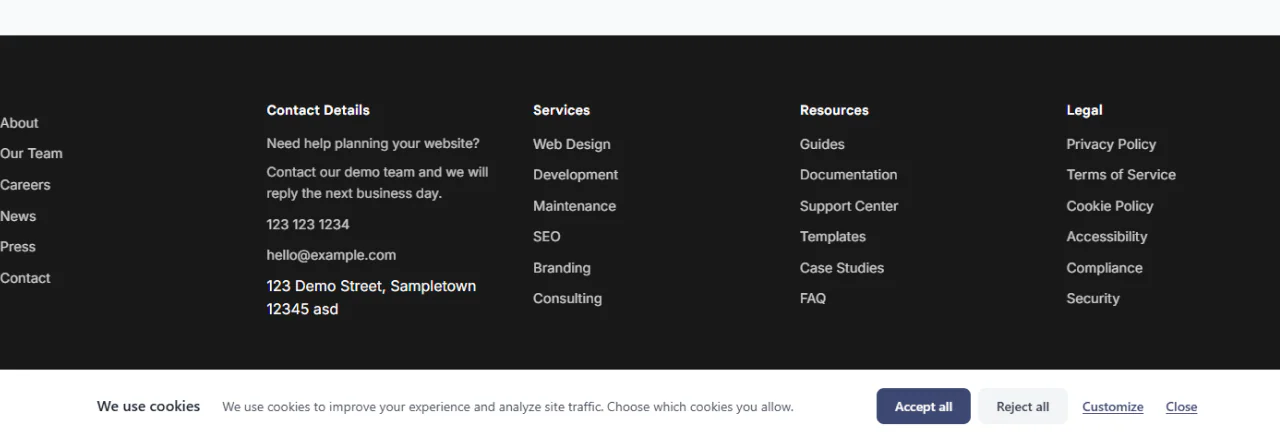
Kansleri Cookie Consent works right after you activate it. The banner shows, tracking scripts that the plugin recognises wait for consent, and Google Consent Mode v2 signals are on. The steps below take it from “works” to “fits your site”.
Requirements
- WordPress 6.0 or newer
- PHP 7.4 or newer
- No account, licence key or outside service
Install
- In WordPress, go to Plugins → Add New, search for Kansleri Cookie Consent, then click Install and Activate.
- Open Settings → Cookie Consent.
You can also download the plugin from WordPress.org (opens in a new tab) and upload it under Plugins → Add New → Upload Plugin.
What works out of the box
| Setting | Default |
|---|---|
| Banner style | Corner popup |
| Cookie categories | Necessary, Analytics, Marketing, Preferences |
| Google Consent Mode v2 | On, Basic mode |
| Blocking of scripts in page HTML | On |
| YouTube and Vimeo blocking | On |
| Floating settings button | On |
| Banner texts | Built-in texts in the visitor’s language (26 languages included) |
Set up in ten minutes
- General tab: choose the banner style and colours. Check the preview on the same page. See Banner, colours and texts.
- Integration tab: if you use Google Analytics, Google Ads or Google Tag Manager, keep Consent Mode v2 on. See Google Consent Mode v2 and Tag Manager.
- Cookies tab: click Scan Cookies. Known cookies are added with descriptions. If unknown cookies are found, use the AI helper to describe them. See Cookies and the cookie scanner.
- Policy Page tab: the cookie policy page defaults to your WordPress Privacy Policy page. Add the
[kncc_cookie_policy]shortcode to it. See Cookie policy page. - Script Blocking tab: check what is held back until consent. Add a Block by address rule for any tool the plugin does not recognise. See Script and embed blocking.
Test it
Open your site in a private browser window, so that no earlier choice is stored.
- The banner should show on the first visit.
- Before you choose, the browser’s developer tools (Application → Cookies) should show no analytics or marketing cookies.
- After Accept all, the trackers load without a page reload.
- After Reject all, nothing optional loads, also on the next page.
- The floating button or a
[kncc_cookie_settings]link opens the banner again, so visitors can change their choice.
If something runs before consent, see Troubleshooting.
Updated 28 October 2026
Something wrong or missing? Tell me in the support forum. (opens in a new tab)