
Banner, colours and texts
Choose the banner style, colours and typography, and edit every text visitors see, in every language, on the General tab.
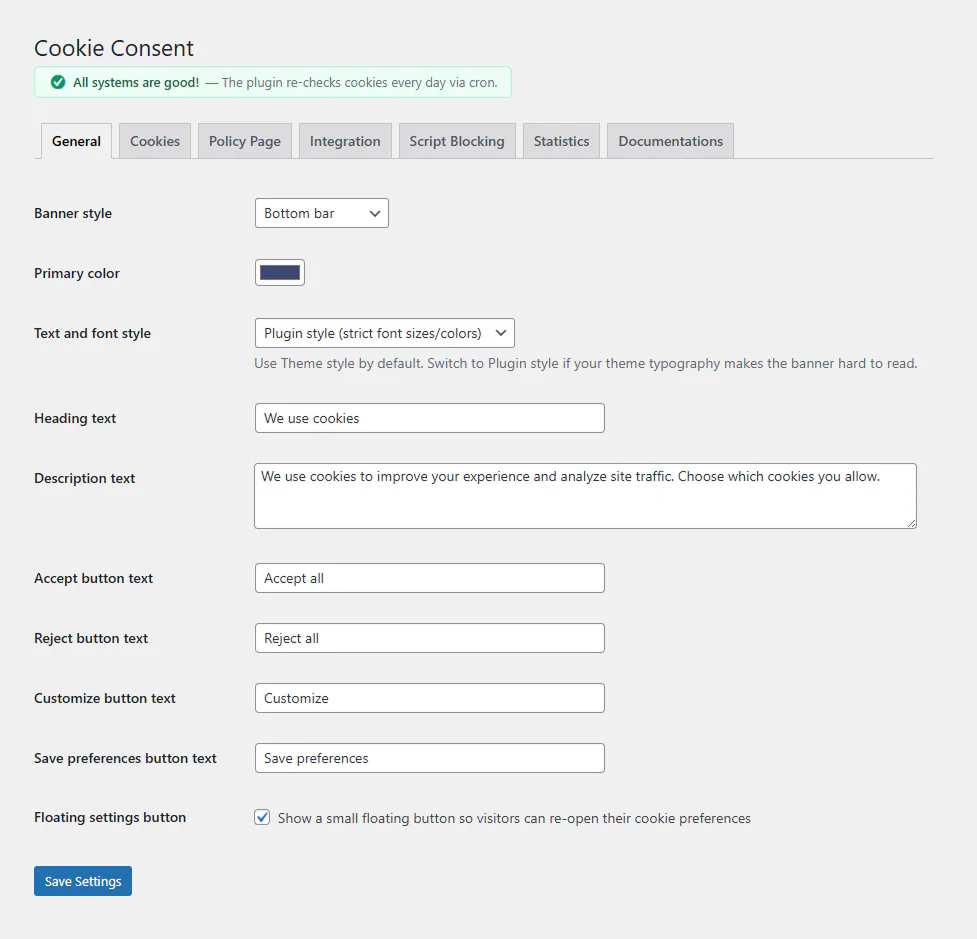
Everything about the look of the banner is on the General tab. A live preview on the same page shows your changes before you save.
Banner style
| Style | Where it shows |
|---|---|
| Corner popup | A card in the bottom corner (the default) |
| Bottom bar | A full-width bar at the bottom of the page |
| Centered modal | A dialog in the middle of the page |
All three have the same three buttons on the first layer: Accept all, Reject all and Customize. Rejecting is as easy as accepting, which the GDPR and most regulators expect.
Colours
You can set the banner background, the heading and body text colours, and the colours of the primary and secondary buttons and their text.
A note on button colours: many regulators, Finland’s Traficom among them, expect refusing to be as easy as accepting. If Accept is bright and Reject barely visible, the banner nudges visitors. Similar weight for both buttons is the safer choice.
Text and font style
- Plugin style (default): fixed sizes and colours, so the banner looks the same on every theme.
- Theme style: the banner uses your theme’s fonts and text styles.
If the banner looks odd with your theme, switch to Plugin style.
Texts visitors see
Since version 1.8.9, every text visitors see can be edited:
- the banner heading, description and button labels
- the names and descriptions of the cookie categories, and the note shown for a category with no cookies
- the Cookie Policy link text and the screen-reader label of the banner
- the floating button label, which is also the default text of the
[kncc_cookie_settings]link - the message and button on blocked analytics and preferences content
- every text of the cookie declaration on the policy page (on the Policy Page tab)
An empty field keeps the built-in text in the visitor’s language. Nothing changes on your site until you type your own wording. This also means a Finnish visitor sees Finnish texts even if you never touch the fields.
On multilingual sites each language can have its own wording. See Multilingual sites.
Categories with no cookies
If a category has no registered cookies, the banner shows its switch disabled, or hides the category, depending on your choice. Run the cookie scanner so the categories reflect what your site really uses.
Floating settings button
A small cookie button in the corner lets visitors reopen the banner and change their choice. It is on by default; you can turn it off on the same General tab if you add a [kncc_cookie_settings] link to your footer instead. Visitors must always have a way to withdraw consent.
Custom CSS
For changes beyond the settings, see Shortcodes, CSS and developers.
Updated 28 October 2026
Something wrong or missing? Tell me in the support forum. (opens in a new tab)